Configure Zoom Reseller Channel
Channels can optionally be enabled for resellers to manage their Zoom customers. Once enabled, Zoom functionality cannot be disabled until all onboarded Zoom customers are deleted.
| ➢ | To enable the channel: |
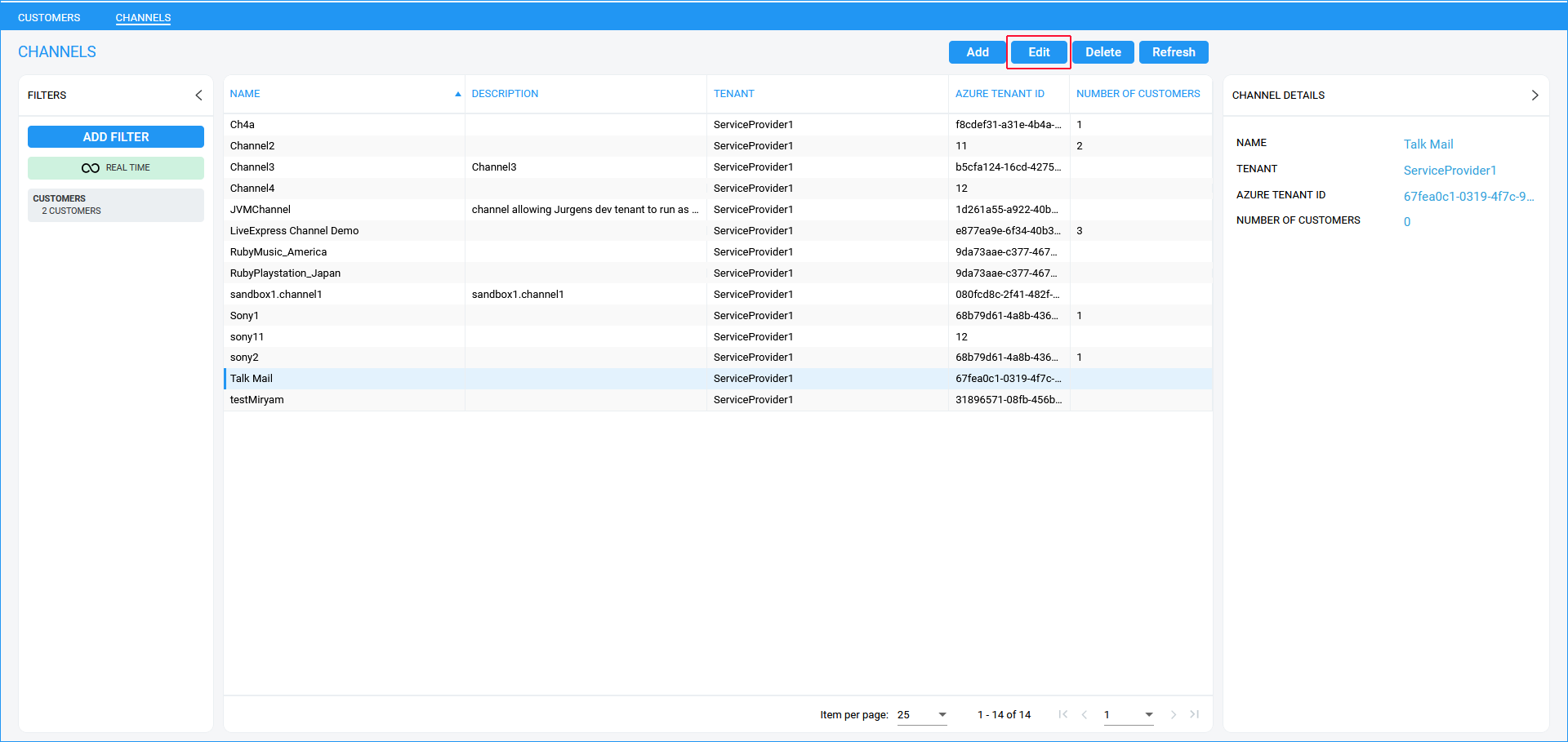
| 1. | In the Channels screen, click Edit. |
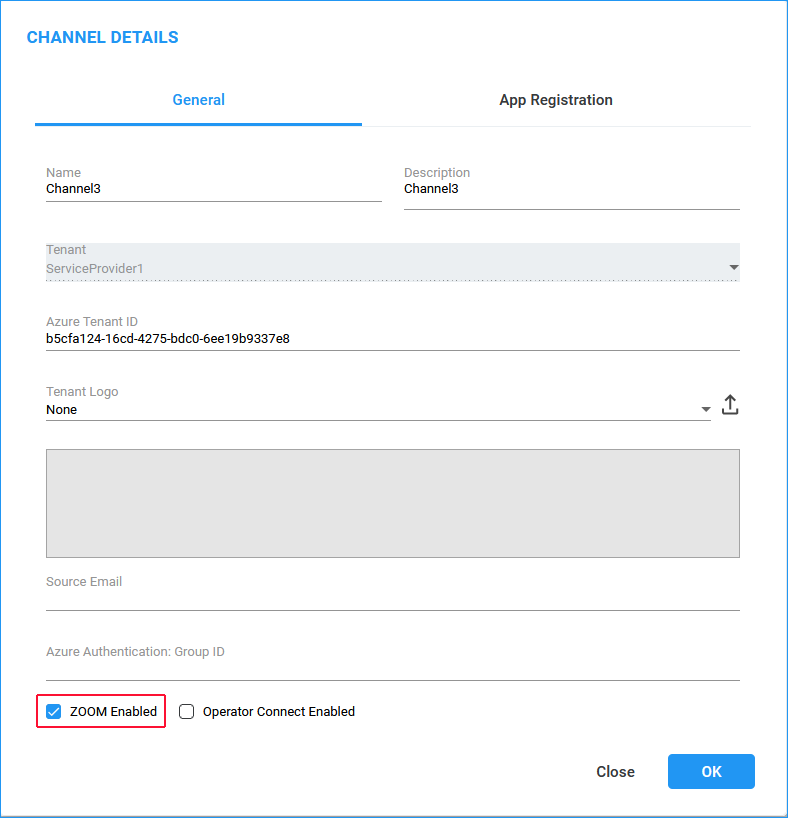
| 2. | Enter the channel name and description. |
| 3. | Enter the Azure Tenant ID of the Channel. |
| 4. | Load the Channel Tenant logo. |
| 5. | Enter Channel Email address. |
| 6. | Enter the Tenant User Group Azure Authentication Group ID. Channel administrators should be added to this group. |
| 7. | Select the ZOOM Enabled check box. |
| 8. | Select the App Registration tab. |
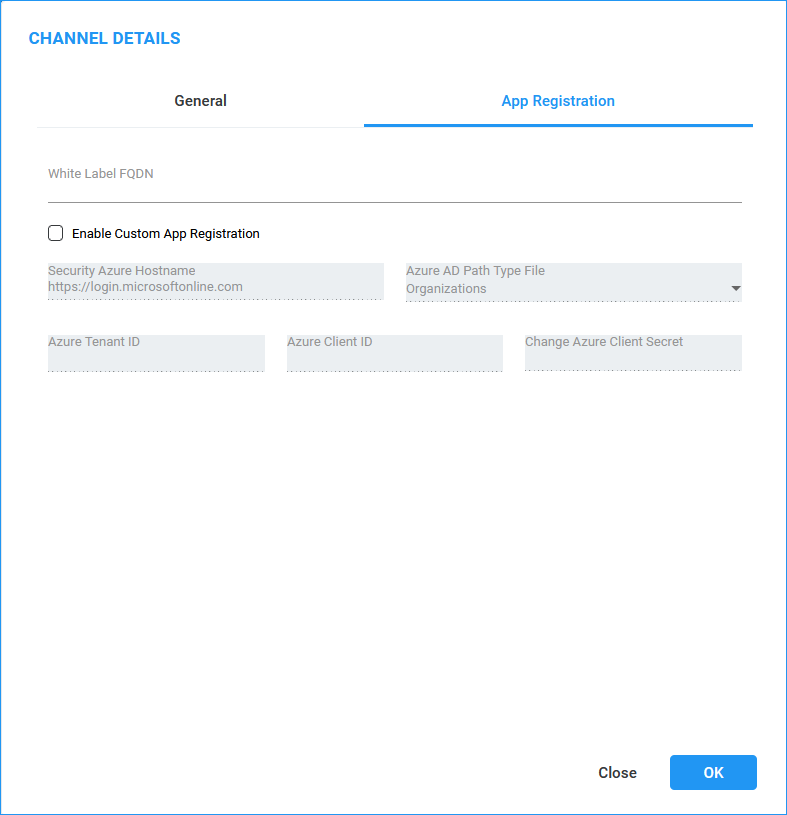
| 9. | Configure parameters according to the table below. |
Azure Tenant Details
|
Parameter |
Description |
|---|---|
|
White Label FQDN |
FQDN of the channel's Azure subscription. |
|
Enable Custom App Registration |
Enables the deployment of the Zoom application to the Channel tenant. |
|
Secure Azure Hostname |
Hostname of the channel's Azure portal |
|
Azure AD Path Type File |
Organizations: Access Azure AD in the enterprise network where the channel has purchased a standard subscription service. |
|
Azure Tenant ID |
Channel Azure tenant ID. |
|
Azure Client ID |
Channel Azure Client ID. |
|
Change Azure Client Secret |
Channel Azure Client Secret. |